Add a New Device
First, select the Devices tab in the navigation bar.
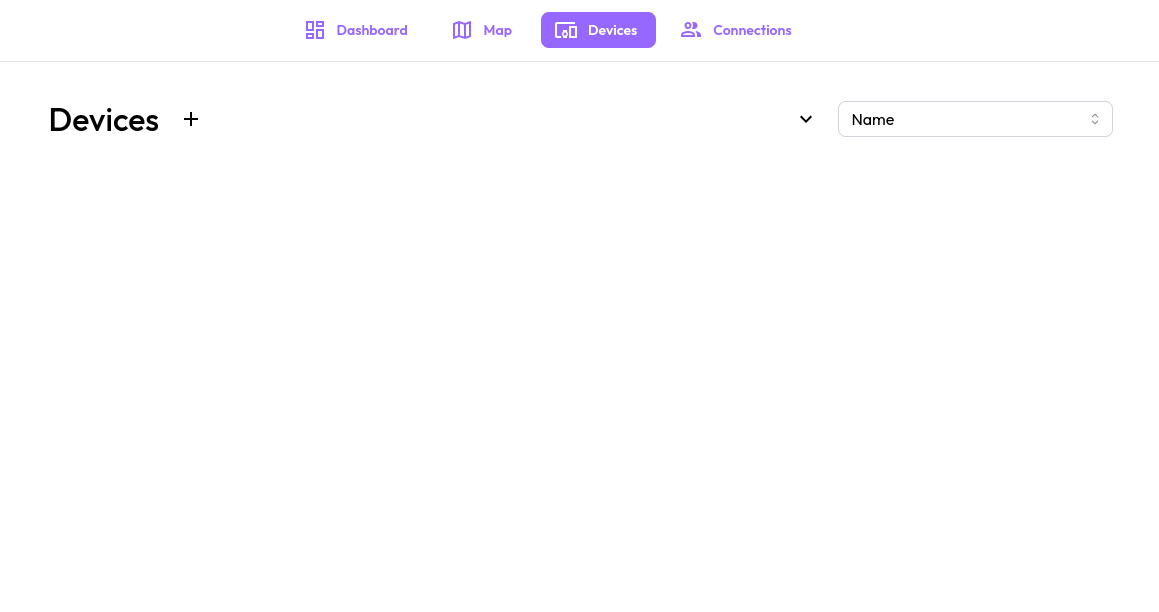
All your devices will be displayed here for you to control and manage.
To add a new device, click on the "plus" button next to Devices.


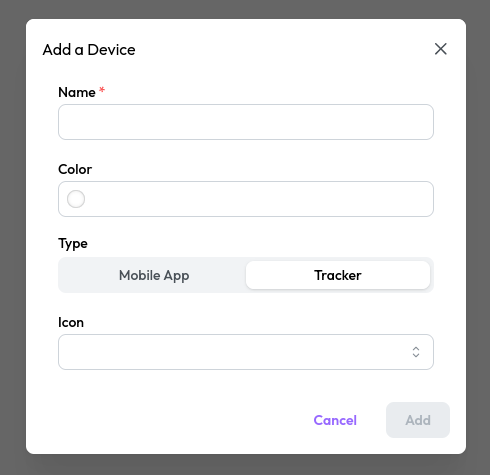
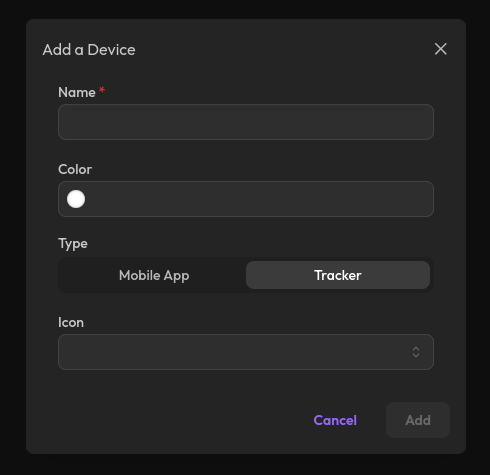
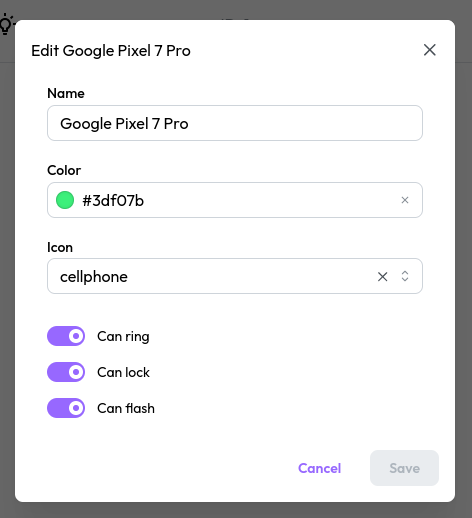
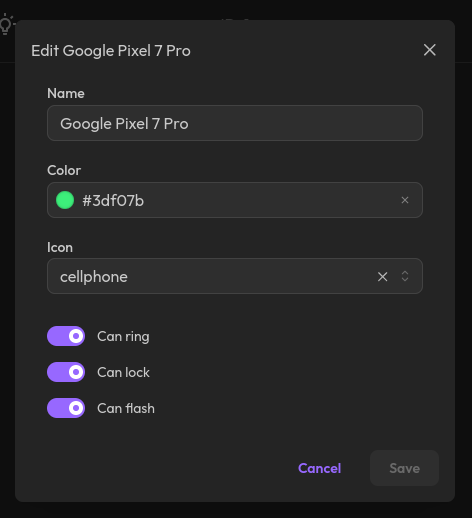
You can enter all of your device's information in this dialog.
- Name (required): the name of your device.
- Color: the color associated with the device to help distinguish it.
- Type (required): the type determines which actions your device
will have enabled by default. These actions can be added or removed
later using the edit function.
- Mobile App: this is the option you need if you transmit location
data using the official Onloc Android app. This enables the
ring,lockandflashactions. - Tracker: this does not enable any actions. It is useful for basic trackers that only emit locations without receiving any command.
- Mobile App: this is the option you need if you transmit location
data using the official Onloc Android app. This enables the
- Icon: the icon that will represent this device.
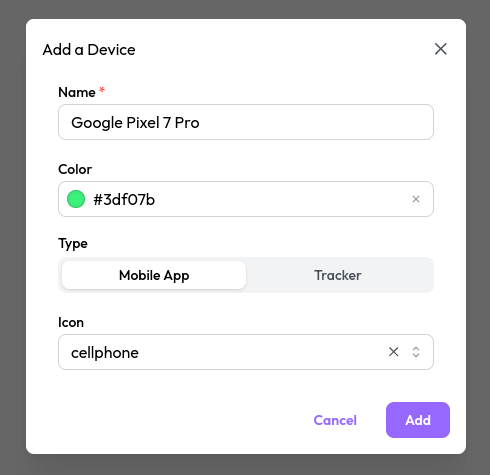
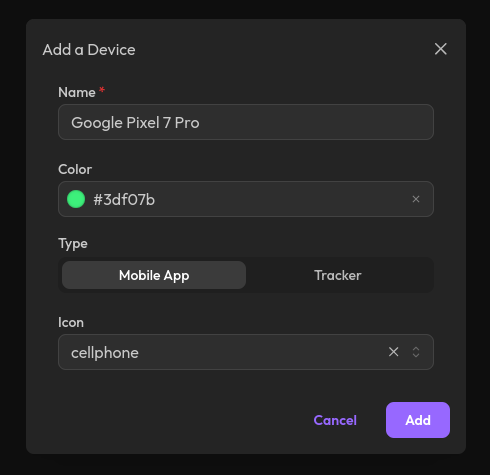
Once every required field has been filled in, you can click the Add button
to add the device.
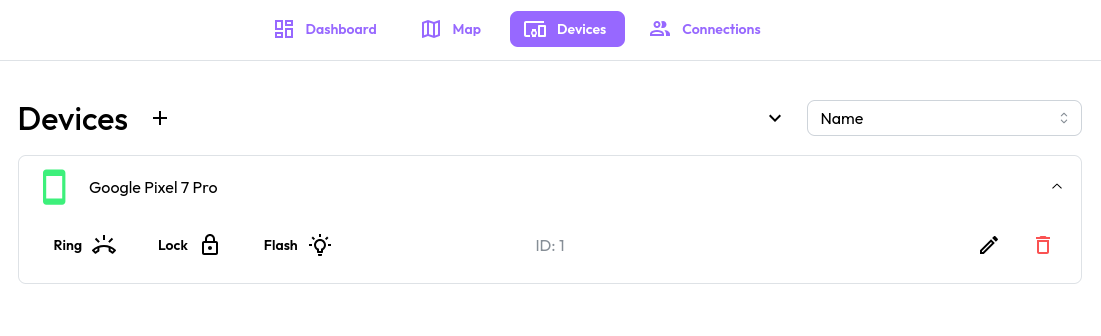
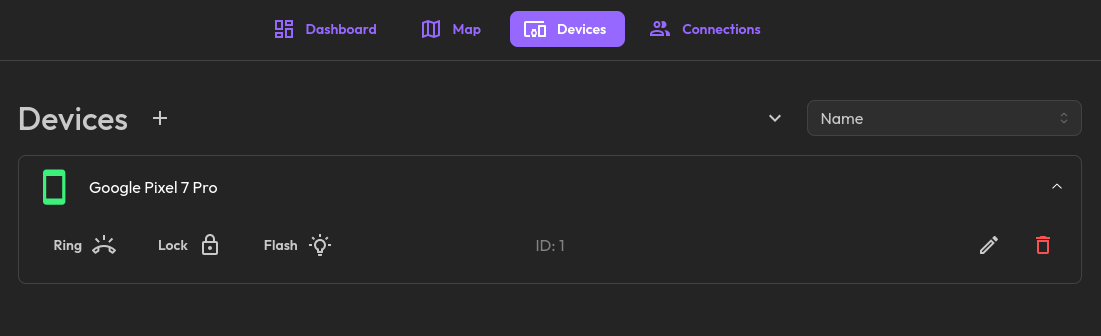
Each device has action buttons that lets you control it. Each device also
has an Edit button that lets you modify details about it.